
Odoo Community CRM is solid for managing your pipeline. But the moment you try to run outbound sales — cold emails, follow-up sequences, campaign tracking — you hit a wall. These features are either locked behind the Enterprise license or simply don't exist.
This guide walks you through setting up a working cold email outreach system in Odoo 18 Community. No Enterprise license required. I'll cover every step: SMTP configuration, module installation, campaign creation, template building, and actually running your first sequence.
Why Odoo Community Can't Do Cold Outreach Out of the Box
Before we fix the problem, it helps to understand what's missing.
Standard Odoo Community CRM has three fundamental limitations for outbound sales:
-
Emails go to followers, not leads. When you click "Send Email" on a lead, Odoo sends to the record's followers — not to the lead's contact person. For cold outreach, this is useless. The lead doesn't know you exist, let alone follow your CRM record.
-
No email sequences. There is no way to define multi-step campaigns where follow-ups are automatically triggered after X days. You'd have to manually track every lead and every follow-up in a spreadsheet.
-
No campaign structure. There's no concept of grouping leads into campaigns, tracking their status within that campaign, or measuring reply rates.
Odoo Enterprise adds some of these capabilities. But at per-user pricing, that's a significant cost — especially for small teams that primarily need outreach functionality.
The alternative: two modules that fill these gaps.
What You Need
Two modules handle the core problems:
CRM Direct Email
Fixes the recipient problem. When you click "Send Email" on a lead, the module automatically fills in the lead's contact email. It also adds sender selection — you can choose which SMTP account to send from.
This is a free module, available on the Odoo App Store.
For a detailed look at the recipient problem and this module, read: Why Odoo Community CRM Doesn't Pre-Fill Email Recipients.
Outreach Campaigns
Adds campaign management, email sequences, status tracking, and follow-up logic to Odoo CRM. This is the module that turns your CRM into an outbound sales tool.
For a feature overview, see: Odoo CRM Outreach Module.
Install both from the Odoo App Store. Requirements: Odoo 18, CRM module, Mail module.
Step 1: Setting Up SMTP Senders
Before you send a single cold email, your SMTP setup needs to be right. This is the foundation. Get it wrong and your emails land in spam — or don't arrive at all.
Why Multiple Senders Matter
Sending 50+ cold emails per day from a single address is a fast way to get flagged. Email providers watch sending volume. If an address that normally sends 5 emails a day suddenly sends 50, that's a red flag.
Multiple SMTP senders let you:
- Distribute volume across addresses so no single one gets burned
- Match sender to context — different brands, different team members
- Improve deliverability by rotating senders across campaigns
Setting Up SMTP in Odoo
Go to Settings > Technical > Outgoing Mail Servers. Add each SMTP account as a separate server entry.
Example: Brevo (formerly Sendinblue)
- SMTP Server: smtp-relay.brevo.com
- Port: 587
- Security: TLS
- Username: your Brevo login email
- Password: your Brevo SMTP key (not your account password)
Example: IONOS
- SMTP Server: smtp.ionos.de
- Port: 587
- Security: TLS
- Username: your full email address
- Password: your email password
After adding each server, click "Test Connection" to verify. If the test fails, double-check your credentials and make sure your email provider allows SMTP relay.
DNS Records: SPF, DKIM, DMARC
If you haven't set up DNS authentication for your sending domains, do it now. Without proper SPF, DKIM, and DMARC records, your emails will end up in spam regardless of what module you use.
- SPF: Tells receiving servers which SMTP servers are allowed to send on behalf of your domain
- DKIM: Adds a cryptographic signature to verify the email hasn't been tampered with
- DMARC: Defines what to do with emails that fail SPF or DKIM checks
Every reputable SMTP provider has documentation for setting these up. If you skip this step, everything else is wasted effort.
Sender Selection in CRM Direct Email
Once you have multiple SMTP servers configured, the CRM Direct Email module lets you choose which one to use when composing an email from a lead.
This means your sales rep can send from their personal address, a team address, or a domain-specific address — depending on the campaign and the recipient.
Step 2: Creating Your First Campaign
With SMTP configured, open the Outreach Campaigns module and create your first campaign.
Fill in the basics:
- Name: Something descriptive. "SaaS Founders DACH Q1 2025" is better than "Campaign 1".
- Description: Who you're targeting and why. This helps your team understand the context.
- Timeframe: Set a start and end date. Most cold campaigns run 4-6 weeks.
- Responsible person: Assign ownership so it's clear who manages this campaign.
Keep campaigns focused. One campaign per target audience, per offer. Don't mix SaaS founders and e-commerce managers in the same campaign — they need different messaging.
Step 3: Building Email Templates with Personalization
This is where most campaigns succeed or fail. Your templates need to be good enough that recipients think you wrote the email just for them.
Creating Templates
In your campaign, define the email sequence. Each step gets its own template:
Step 1 — Initial Contact (Day 0) Subject: Quick question about {{company_name}}
Body:
Hi {{contact_name}},
I saw that {{company_name}} is [specific observation about their business]. We've been helping similar companies with [specific problem you solve].
Would it make sense to have a 15-minute call this week to see if there's a fit?
Best, {{sender_name}}
Step 2 — Follow-up (Day 3) Subject: Re: Quick question about {{company_name}}
Body:
Hi {{contact_name}},
Just following up on my email from earlier this week. I know things get busy.
[One concrete result you achieved for a similar company]. I think there could be a similar opportunity for {{company_name}}.
Worth a quick chat?
{{sender_name}}
Step 3 — Value Add (Day 7) Subject: [Relevant resource] for {{company_name}}
Body:
Hi {{contact_name}},
I put together [resource/insight] that might be relevant for {{company_name}} based on [observation].
[Link or brief summary of the resource]
Happy to walk through it if useful.
{{sender_name}}
Step 4 — Final Check-in (Day 14) Subject: Should I close this out?
Body:
Hi {{contact_name}},
I haven't heard back, so I don't want to keep bothering you.
If the timing isn't right, no problem at all. If things change down the road, feel free to reach out.
All the best, {{sender_name}}
Template Tips
- Keep it short. Cold emails should be 3-5 sentences. Nobody reads a wall of text from a stranger.
- No HTML formatting. Plain text performs better in cold outreach. It looks like a real email, not a marketing blast.
- The subject line matters more than the body. If they don't open it, nothing else matters.
- Personalization beyond the name. Mention something specific about their company. Generic templates get ignored.
Step 4: Adding Leads to the Campaign
With your campaign created and templates ready, it's time to add leads.
You can add leads individually or in bulk:
- Individual: Open a lead, assign it to the campaign. Good for high-value targets where you want extra attention.
- Bulk: Select multiple leads from your CRM list view and assign them to the campaign at once. This is the typical approach for outbound lists.
Each lead receives the status "New" when added to the campaign. This means they're queued but haven't been contacted yet.
Before adding leads, make sure each one has:
- A valid email address
- A contact name (for personalization)
- A company name (for personalization)
Leads without email addresses will be skipped during sending. Leads without names will have empty placeholders — which looks worse than not sending at all.
Step 5: Running the Sequence and Tracking Replies
Now comes the actual sending.
Sending the First Step
Trigger the first email in the sequence. The module sends your Day 0 template to all leads with status "New". After sending, their status changes to "Contacted".
The module logs the sent email in each lead's chatter, so you have full traceability of what was sent and when.
Automatic Follow-up Scheduling
After sending Step 1, the module calculates when each follow-up is due based on the time gaps you defined in your templates:
- Step 2 becomes due 3 days after Step 1
- Step 3 becomes due 7 days after Step 1
- Step 4 becomes due 14 days after Step 1
You'll see a queue of pending follow-ups on your dashboard. When they're due, review and send.
Reply Detection
When a lead replies to your email, the module detects the incoming message and changes the lead's campaign status to "Replied". The sequence pauses automatically for that lead — no more follow-ups go out.
This is critical. Nothing kills a relationship faster than an automated follow-up arriving after someone already responded.
Step 6: Follow-up Management and Status Tracking
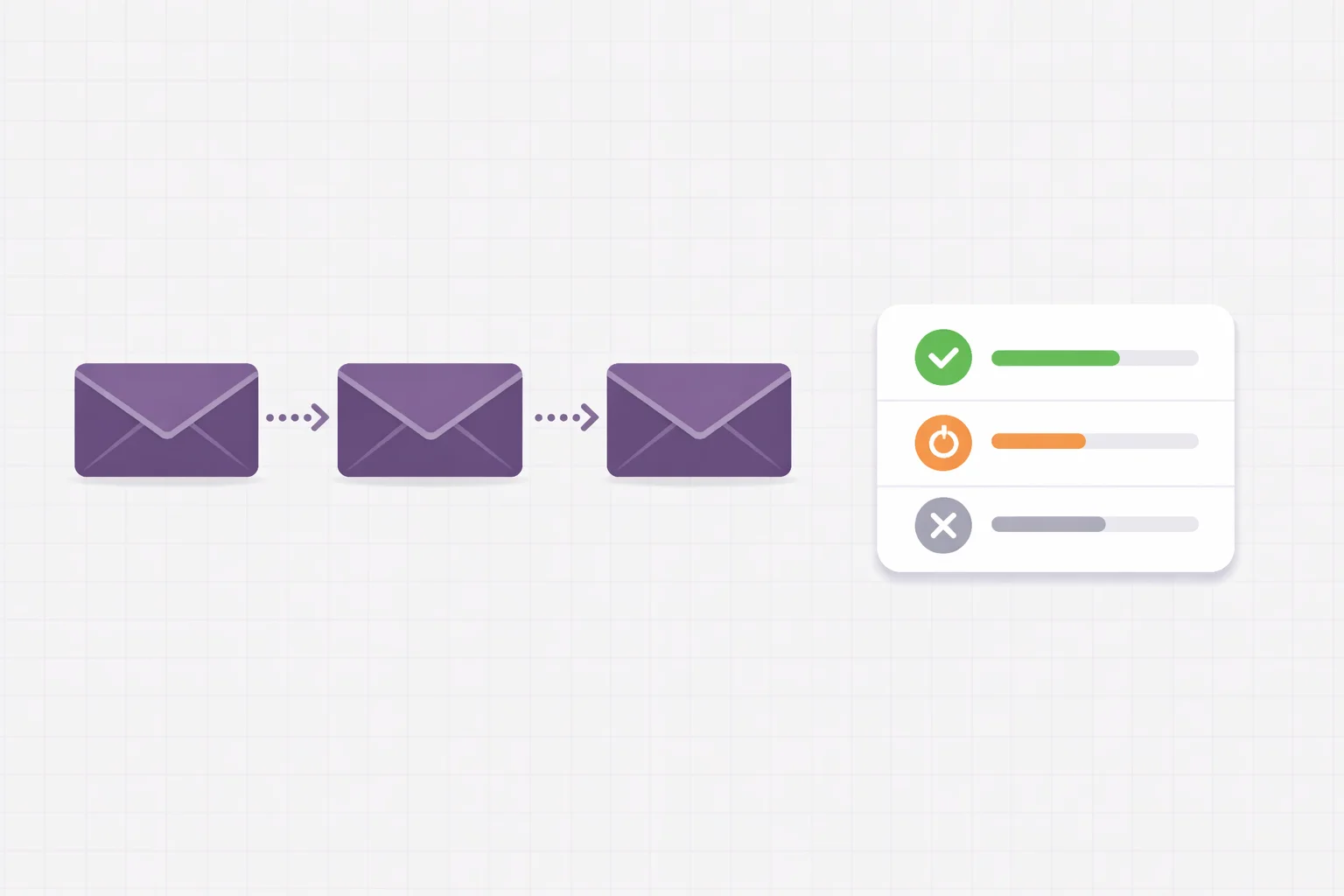
As your campaign runs, leads move through different statuses:
- New — Added but not yet contacted
- Contacted — First email sent, waiting for reply
- Replied — Lead responded (sequence paused)
- Positive — Response indicates interest
- Not Now — Not interested right now, re-engage later
- Dead — No interest, do not contact again
Working the Replies
When a lead moves to "Replied", it's your job to read the reply and decide:
- Positive reply ("Sure, let's talk") — Mark as "Positive", schedule a meeting
- Neutral reply ("What's this about?") — Reply manually, continue the conversation
- Negative reply ("Not interested") — Mark as "Dead" or "Not Now" depending on the tone
- Auto-reply / OOO — Leave as "Replied", the person may respond when they're back
Campaign Overview
At any point, you can see your campaign funnel:
- How many leads are in each status
- What your reply rate looks like
- Where follow-ups are pending
- Which leads need manual attention
This overview is what turns cold outreach from chaotic to systematic.
Tips for Better Deliverability
Getting emails into the inbox (not spam) is half the battle. Here's what actually works:
Warm up new email addresses. Don't send 50 cold emails on day one from a brand-new address. Start with 5-10 per day and increase over 2-3 weeks.
Keep volume reasonable. 30-50 emails per sender per day is a safe range. More than that and you're pushing it.
Use a dedicated sending domain. Don't send cold outreach from your main company domain. If the domain gets flagged, your regular business email is affected. Use a separate domain (e.g., outreach.yourcompany.com) for cold campaigns.
Monitor bounce rates. If more than 5% of your emails bounce, clean your list. High bounce rates damage your sender reputation.
Don't use tracking pixels in cold emails. Many spam filters flag them. Open tracking is nice to have, but deliverability is more important.
Include an unsubscribe mechanism. Even for cold outreach, give recipients a way to opt out. It's legally required in most jurisdictions and reduces spam complaints.
GDPR Considerations for EU Companies
If you're operating in the EU, cold email outreach is legal — but only under specific conditions. This isn't legal advice, but here's what you should know:
Legitimate Interest (Art. 6(1)(f) GDPR)
B2B cold outreach can be justified under "legitimate interest" if:
- You're contacting business email addresses (not private ones)
- The content is relevant to the recipient's professional role
- You provide a way to opt out
- You don't continue after an opt-out
What You Must Do
- Document your legitimate interest assessment. Write down why you believe contacting this person serves a legitimate business interest.
- Only use business email addresses. Never contact personal email addresses for cold outreach.
- Provide an opt-out in every email. A simple "If you don't want to hear from me, just reply and I'll remove you" works.
- Honor opt-outs immediately. When someone says stop, stop. Mark them as "Dead" in your campaign.
- Keep records. Log what you sent, when, and to whom. The Odoo CRM chatter handles this automatically.
The Advantage of CRM-Native Outreach
One significant benefit of running outreach inside Odoo rather than through external tools: your data stays in your system. No data transfer to third-party providers means fewer data processing agreements, simpler compliance documentation, and reduced risk.
When you use US-based outreach tools like Lemlist or Apollo, you need to ensure adequate data protection for EU personal data transferred to the US. With CRM-native outreach, this issue doesn't arise.
Conclusion
Cold email outreach in Odoo 18 Community is entirely possible without an Enterprise license. It takes two modules, proper SMTP setup, and well-crafted templates. The setup described in this guide gives you:
- Pre-filled recipients and sender selection (CRM Direct Email)
- Multi-step email sequences with automatic follow-up scheduling (Outreach Campaigns)
- Campaign tracking with clear status logic
- Full traceability in your CRM
- GDPR-friendly setup with all data in your system
It's not as polished as dedicated outreach tools like Lemlist or Apollo. But it works, it's integrated, and it doesn't add another SaaS subscription to your stack.
If you're already running Odoo CRM for your sales pipeline, adding outreach inside the same system makes more sense than bolting on yet another tool.
Related Articles
- Why Odoo Community CRM Doesn't Pre-Fill Email Recipients — the recipient problem and how to fix it
- Cold Email & Outreach in Odoo CRM — why traditional CRM can't handle outbound and what needs to change
- Odoo CRM Outreach Module — feature overview of the outreach campaigns module
Both modules are available on the Odoo App Store: CRM Direct Email and CRM Sender Selection. If you need help setting up cold outreach in your Odoo instance or want a custom configuration, get in touch.
