
Sales teams that rely on email outreach face a practical problem: sending every email from a single address limits deliverability, kills personalization, and makes brand separation impossible. If your company operates multiple brands or your sales reps each need their own sender identity, standard Odoo CRM doesn't make this easy.
This guide covers how to configure multiple sender addresses with different SMTP servers in Odoo 18 CRM — and how to use them effectively for outreach.
Why Sales Teams Need Multiple Sender Addresses
There are three main reasons why a single outgoing email address isn't enough for serious sales work:
Deliverability. Email providers like Gmail and Outlook track sender reputation per address. If you send 200 cold emails a day from one address, your reputation drops fast. Distributing volume across multiple senders keeps each address healthy and out of spam folders.
Personal touch. Emails from "sales@company.com" feel generic. Emails from "jonas@company.com" feel personal. In B2B sales, personal sender addresses consistently outperform generic ones in open and reply rates.
Brand separation. Companies with multiple brands, products, or regional entities need to send from different domains. A consulting division and a software division shouldn't share the same sender address.
The Problem in Standard Odoo
Out of the box, Odoo uses a single default outgoing mail server for all emails. You can configure multiple outgoing mail servers in Settings, but there's no practical way to choose which one to use when composing an email from a CRM lead.
What happens in practice:
- All emails go through the server with the highest priority (lowest sequence number)
- Sales reps can't pick a sender when writing to a lead
- If the default server goes down, emails fail silently or fall back unpredictably
- There's no concept of "this rep sends from this address through this SMTP server"
For teams doing any kind of outbound sales, this is a significant limitation.
How Sender Selection Works with CRM Direct Email
The CRM Direct Email module adds sender selection to the mail composer in Odoo CRM. When you compose an email from a lead or opportunity, a dropdown lets you choose which outgoing mail server (and therefore which sender address) to use.
This means:
- Each sales rep can send from their own address
- Different SMTP servers can be used for different senders
- The sender choice is made per email, not globally
- You can mix providers — one sender via Brevo, another via IONOS, a third via your company's own mail server
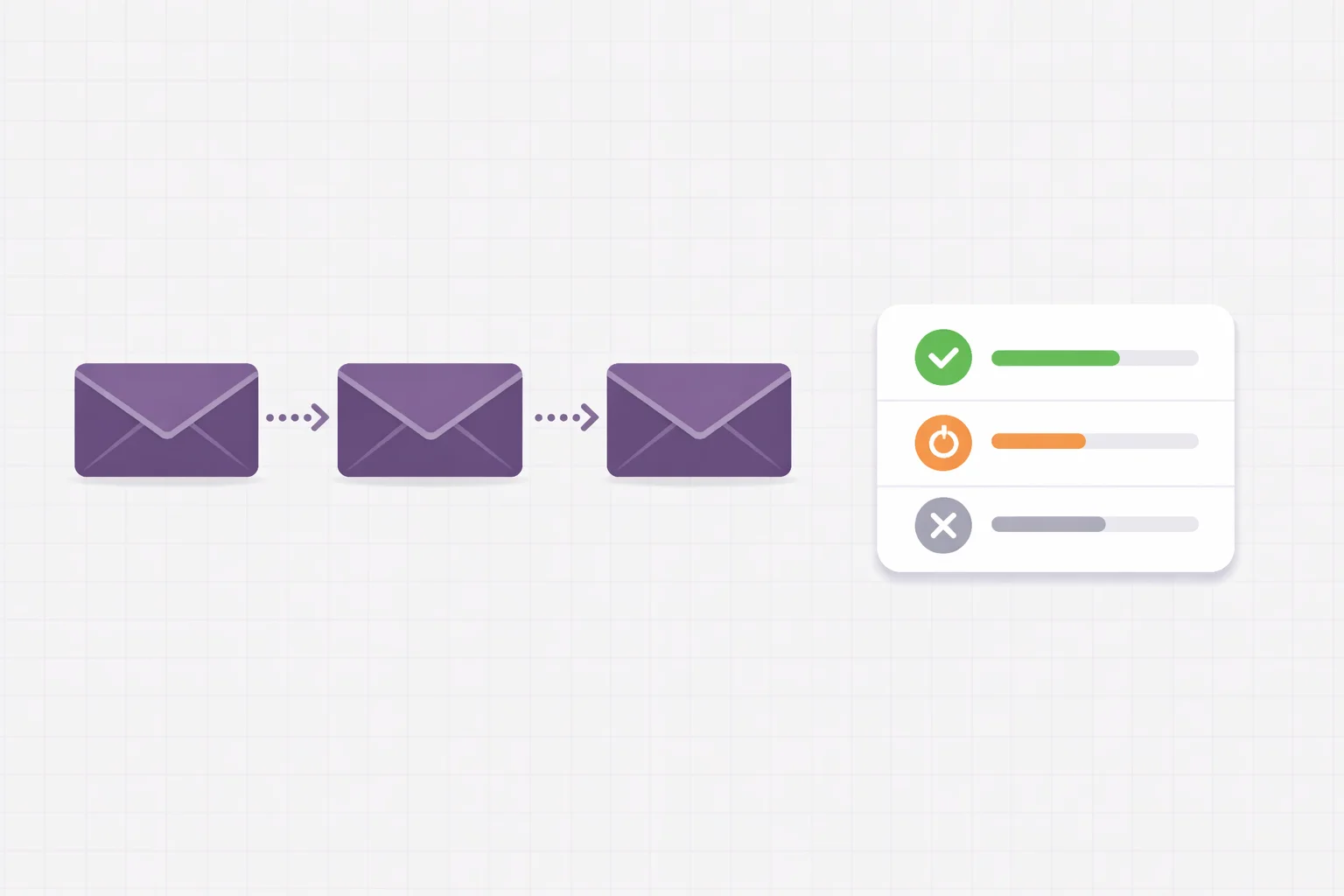
The module is available on the Odoo App Store: CRM Direct Email and CRM Sender Selection for Odoo 18 Community and Enterprise.
Setup Guide: Configuring Multiple SMTP Servers in Odoo 18
Before you can select senders, you need to configure the SMTP servers in Odoo. Here's how to set up two common providers as examples.
Navigating to Outgoing Mail Servers
- Go to Settings > Technical > Outgoing Mail Servers
- Click New to add a server
- Fill in the connection details for your provider
You'll need to repeat this for each sender address / SMTP server combination.
Example 1: Brevo (formerly Sendinblue) SMTP Setup
Brevo is a popular transactional email provider with generous free tiers and strong deliverability. It's well-suited for cold outreach because it handles SPF/DKIM signing automatically for verified domains.
Server configuration:
| Field | Value |
|---|---|
| Description | Brevo - jonas@company.com |
| SMTP Server | smtp-relay.brevo.com |
| SMTP Port | 587 |
| Connection Security | TLS (STARTTLS) |
| Username | your Brevo account email |
| Password | your Brevo SMTP key (not your account password) |
| FROM Filter | jonas@company.com |
Important notes:
- The SMTP key is found in Brevo under Settings > SMTP & API > SMTP. It's not your login password.
- The FROM Filter field tells Odoo to use this server only when the sender matches this email address. This is how Odoo routes emails to the correct SMTP server.
- You must verify your sending domain in Brevo first (under Settings > Senders, Domains & Dedicated IPs).
- Brevo's free tier allows 300 emails/day, which is enough for moderate outreach. For higher volumes, their paid plans start at reasonable rates.
Example 2: IONOS SMTP Setup
IONOS (formerly 1&1) is a common European email and hosting provider. Many German companies already have IONOS email accounts, making it a natural choice for sender addresses.
Server configuration:
| Field | Value |
|---|---|
| Description | IONOS - maria@company.de |
| SMTP Server | smtp.ionos.de |
| SMTP Port | 587 |
| Connection Security | TLS (STARTTLS) |
| Username | maria@company.de (full email address) |
| Password | the email account password |
| FROM Filter | maria@company.de |
Important notes:
- IONOS uses the full email address as the username — not just the local part.
- Port 465 with SSL/TLS also works, but 587 with STARTTLS is generally preferred.
- IONOS has sending limits (typically around 500 emails/hour for standard accounts). Check your specific plan.
- If you use IONOS with a custom domain, make sure SPF and DKIM records are properly configured in the IONOS DNS settings.
How Odoo Routes Emails to the Right Server
The key to making multiple SMTP servers work in Odoo is the FROM Filter field. When Odoo sends an email, it checks the sender address against the FROM Filter of each configured outgoing mail server:
- If the sender matches a FROM Filter exactly, that server is used
- If no FROM Filter matches, Odoo falls back to the server with the lowest sequence number (highest priority)
- If multiple servers match, the one with the lowest sequence number wins
This means each sender address should have its own outgoing mail server entry with a matching FROM Filter. The CRM Direct Email module then lets users pick the sender at compose time, and Odoo routes the email through the correct SMTP server automatically.
Using Sender Selection in Practice
Once your SMTP servers are configured and the CRM Direct Email module is installed, the workflow is straightforward:
- Open a lead or opportunity in CRM
- Click Send Email
- The mail composer opens with the recipient pre-filled (the lead's contact)
- Select the desired sender from the dropdown
- Compose your email and send
The sender selection remembers your last choice, so if you typically send from the same address, you won't need to re-select every time. But when you need to switch — for a different brand, a different campaign, or to distribute volume — the option is always there.
Sender Rotation for Cold Outreach
If you're running cold email campaigns, sender rotation is not optional — it's essential for deliverability.
Why Rotation Matters
Email providers use sender reputation to decide whether your emails reach the inbox. The factors that matter most:
- Volume per sender: Sending too many emails from one address triggers spam filters. Distributing across 3-5 senders keeps individual volumes low.
- Complaint rate: If recipients mark your emails as spam, that hurts the specific sender address. Rotation limits the blast radius.
- Domain reputation: Even with rotation, if all senders share one domain, the domain reputation can still suffer. Using senders across different domains provides better isolation.
- Warm-up period: New email addresses need to build reputation gradually. You can't start sending 100 emails/day from a fresh address. Start with 5-10 per day and increase over 2-4 weeks.
Practical Rotation Strategy
For a team doing outbound sales in Odoo:
- Set up 3-5 sender addresses across at least 2 different domains
- Assign senders to campaigns — each campaign uses one sender, not all of them
- Limit daily volume per sender to 30-50 emails for cold outreach (less for new addresses)
- Monitor bounce rates — if one sender starts bouncing, pause it and investigate
- Rotate weekly or per campaign — don't use the same sender for every campaign
The CRM Direct Email module makes this practical because the sender choice happens at the individual email level. Sales reps consciously choose which address to send from, rather than everything going through one default.
Email Signatures per Sender Address
Different sender addresses should have different signatures. An email from "jonas@consulting-brand.com" should carry a different signature than one from "jonas@software-brand.com".
In Odoo, email signatures are typically set per user in the user preferences. This works for a single sender but breaks when one person sends from multiple addresses.
Current approach:
- Set up signature templates that match each sender identity
- When switching senders, adjust the signature in the email body before sending
- For teams with strict brand guidelines, create email templates per sender that include the correct signature
This is admittedly not perfect. Signature management per sender is an area where Odoo's architecture shows its single-sender origins. For automated campaigns using the Outreach module, templates inherently include the right signature for the campaign's sender.
Common Pitfalls
Setting up multiple SMTP servers is straightforward, but there are recurring issues that trip people up.
SPF Records
SPF (Sender Policy Framework) tells receiving email servers which servers are allowed to send on behalf of your domain. If you send via Brevo and IONOS but your SPF record only lists your own mail server, emails will fail SPF checks.
Fix: Add all sending services to your domain's SPF record.
Example for a domain using both Brevo and IONOS:
v=spf1 include:_spf.brevo.com include:_spf.perfora.net ~all
Check your provider's documentation for the correct include statement. SPF allows a maximum of 10 DNS lookups, so don't add services you're not actively using.
DKIM Signing
DKIM (DomainKeys Identified Mail) adds a cryptographic signature to your emails. Each SMTP provider needs its own DKIM record in your DNS.
- Brevo: Provides DKIM records during domain verification. Add them as TXT records in your DNS.
- IONOS: Handles DKIM automatically for emails sent through their servers for IONOS-hosted domains. For external domains, check their documentation.
Without DKIM, your emails are more likely to land in spam — especially for cold outreach where the recipient doesn't know you.
DMARC Policy
DMARC ties SPF and DKIM together and tells receiving servers what to do when checks fail. At minimum, set up a DMARC record to monitor:
v=DMARC1; p=none; rua=mailto:dmarc-reports@yourdomain.com
Start with p=none (monitoring only) and move to p=quarantine or p=reject once you've confirmed all legitimate email passes SPF and DKIM.
Warm-Up for New Addresses
New email addresses have no reputation. Sending 50 cold emails on day one is a fast track to the spam folder. Warm up new senders:
- Week 1: 5-10 emails per day, ideally to people who will reply (colleagues, existing contacts)
- Week 2: 10-20 emails per day, mix of warm and cold recipients
- Week 3: 20-30 emails per day
- Week 4+: Gradually increase to your target volume
This applies per sender address. If you set up 3 new senders, each needs its own warm-up period.
FROM Filter Mismatches
The most common configuration mistake: the FROM Filter on the outgoing mail server doesn't match the actual sender address. Odoo will silently fall back to the default server, and your email goes out from the wrong address.
Double-check that the FROM Filter exactly matches the email address used in the sender selection. Case sensitivity can also be an issue depending on your Odoo version.
Conclusion
Multiple sender addresses are a basic requirement for any sales team doing email outreach. Standard Odoo makes this harder than it should be, but with the right SMTP configuration and the CRM Direct Email module, it becomes practical.
The setup involves:
- Configure multiple outgoing mail servers with correct FROM Filters
- Set up SPF, DKIM, and DMARC records for all sending domains
- Install the CRM Direct Email module for in-CRM sender selection
- Warm up new sender addresses gradually
- Rotate senders across campaigns for better deliverability
Once configured, your sales team can send personalized emails from the right sender address — directly from the CRM lead, without switching tools or workarounds.
Related articles:
- Why Odoo CRM Doesn't Pre-Fill Email Recipients (And How to Fix It) — the foundation module for sender selection
- Cold Email & Outreach in Odoo CRM — the complete guide to CRM-native outreach
- Odoo CRM Outreach Module — email sequences, follow-ups, and campaign tracking
- Cold Email Setup Without Enterprise — setting up outbound sales in Odoo Community Edition
Need help configuring multiple SMTP servers in your Odoo instance? Get in touch — we help teams set up deliverable outreach infrastructure.

